
Security guard scheduling, time clock and patrols
The office builds the schedule. Guards punch in with a GPS punch, do their patrols and write their incident reports on their phone.
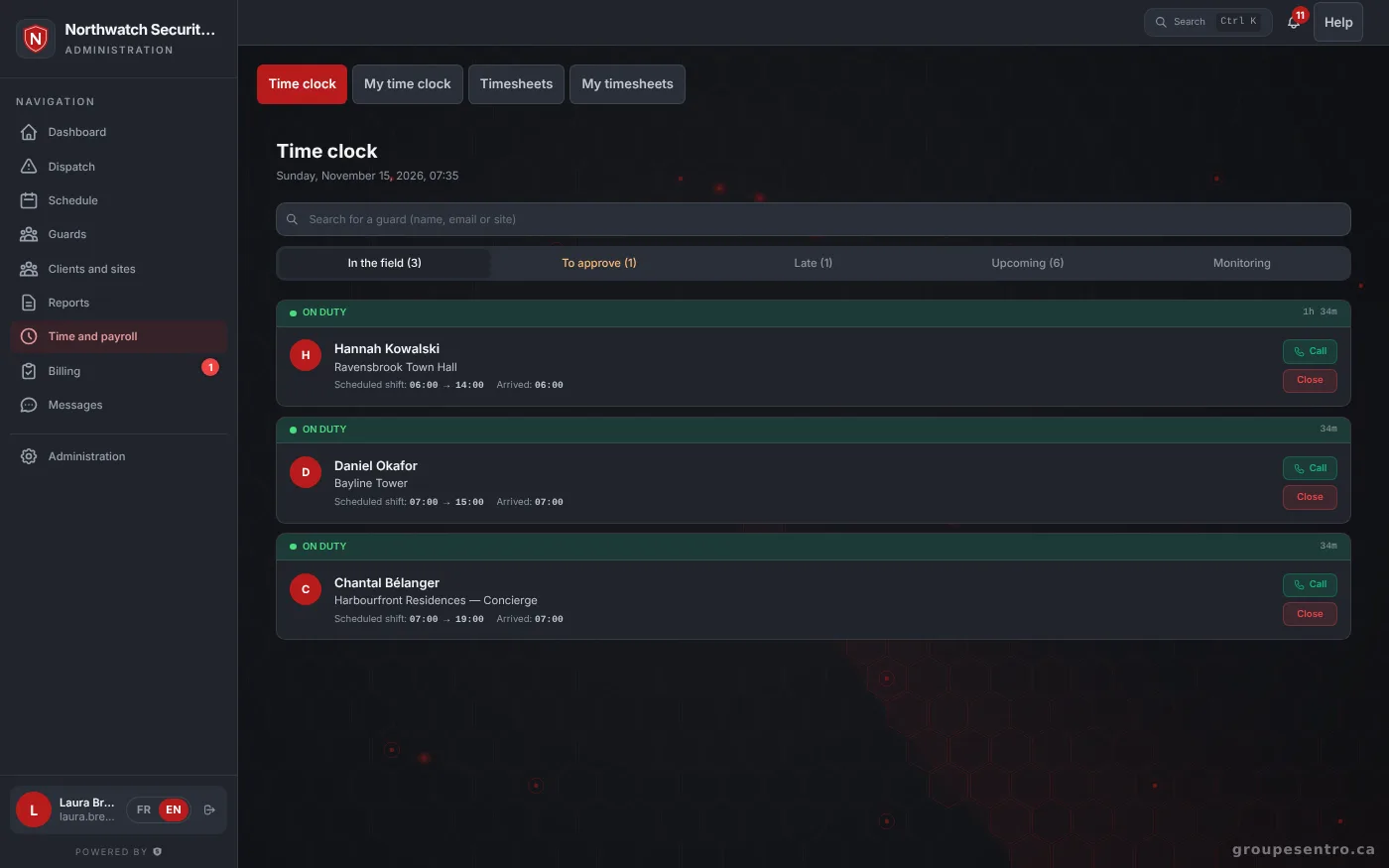
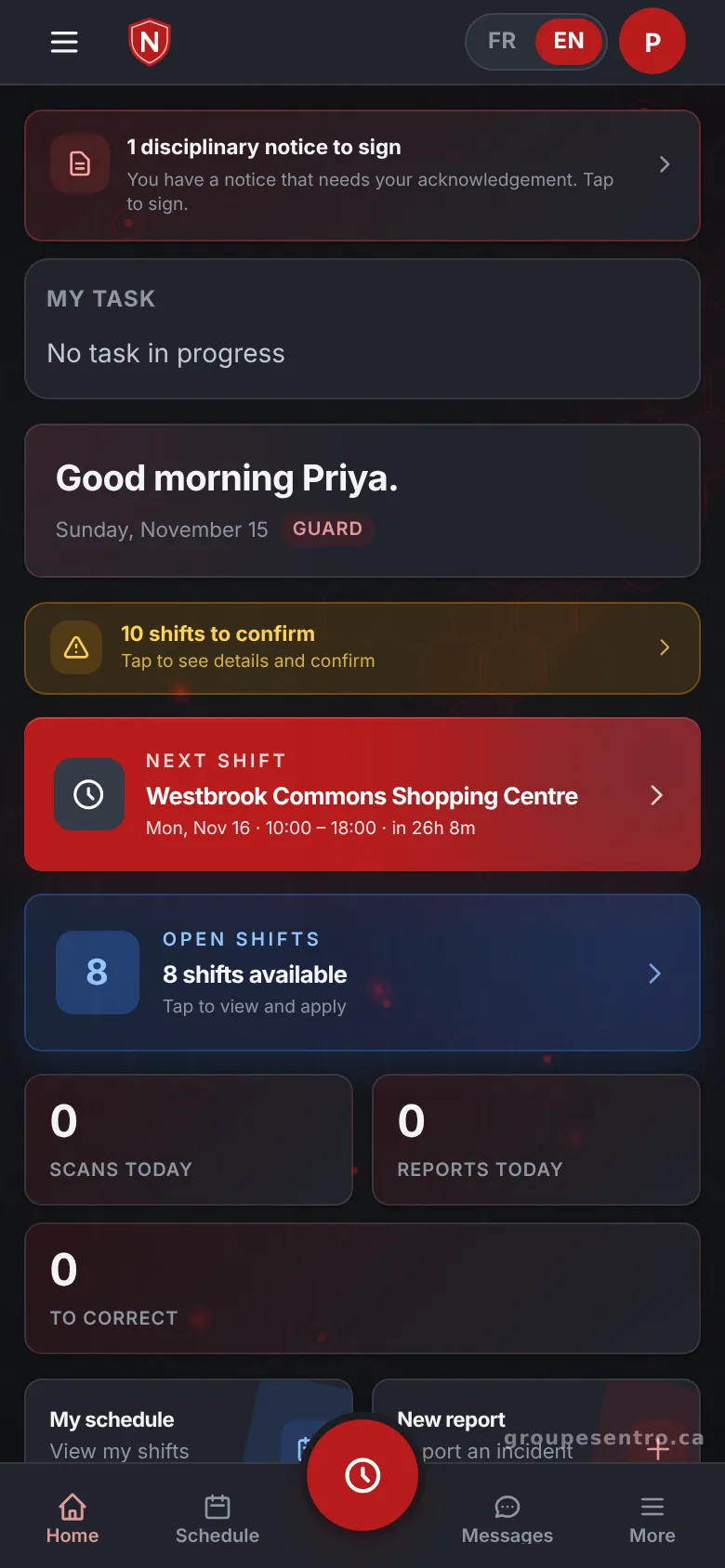
What needs a decision
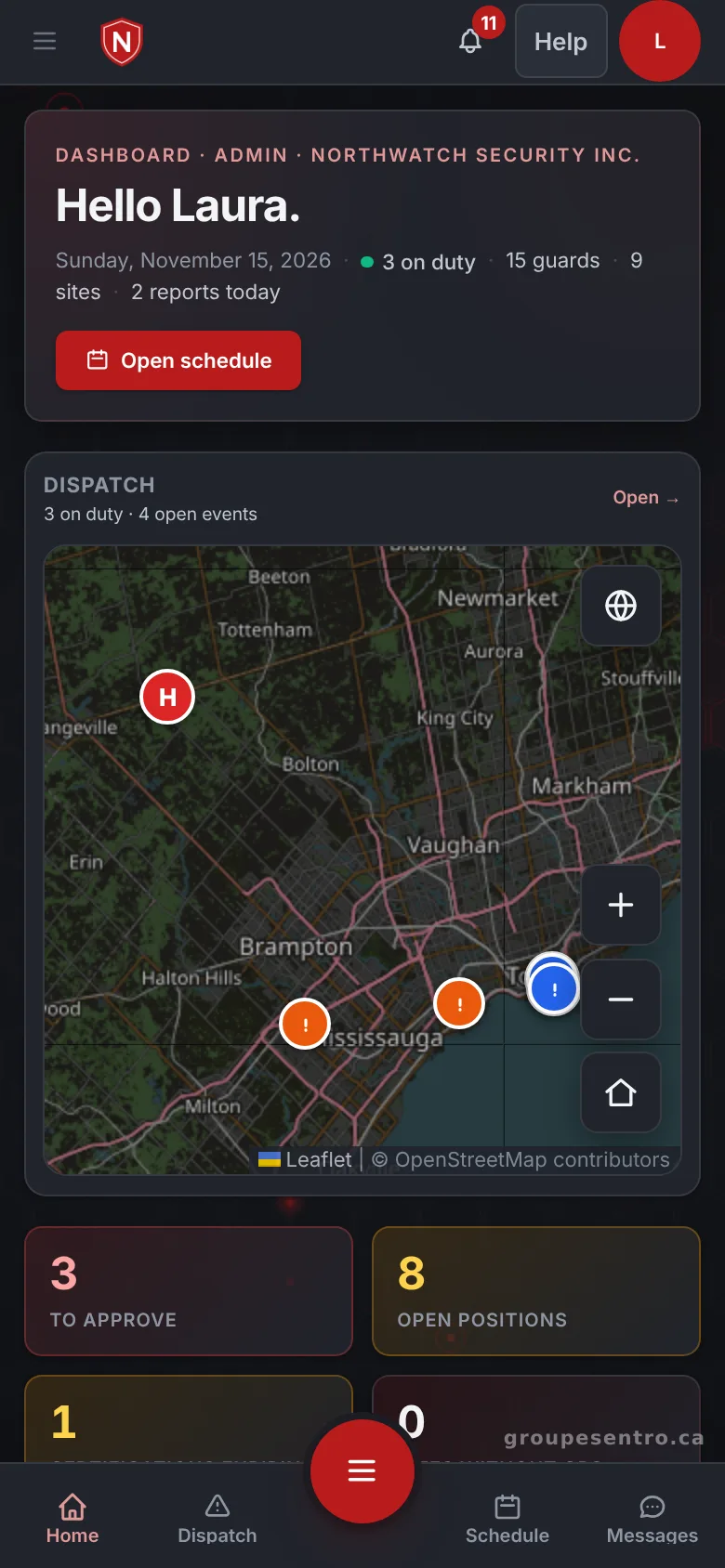
The portal opens on what needs a decision today: reports to approve, shifts to fill and licences about to expire.
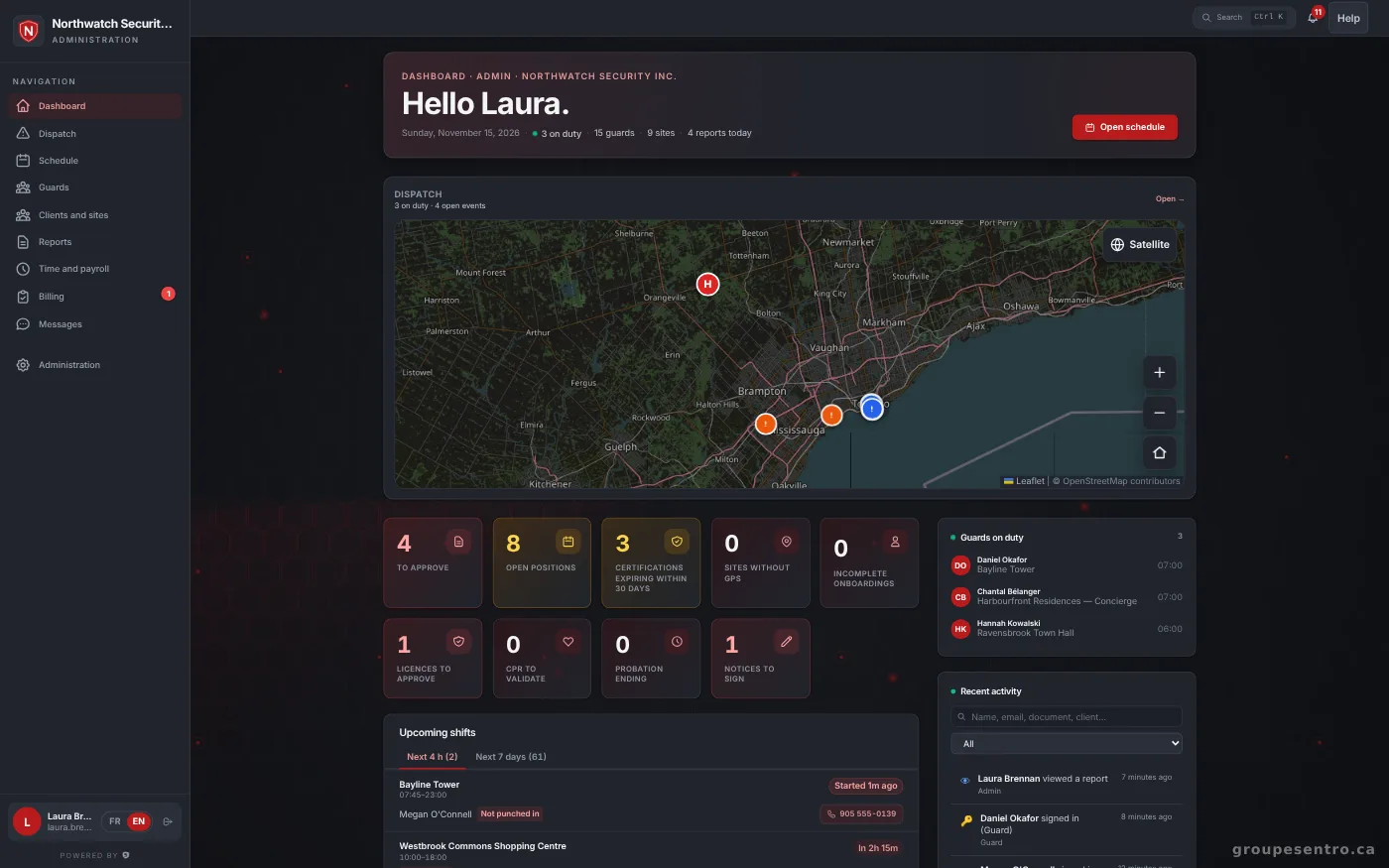
The administration dashboard.
The same dashboard on a phone.
Security guard scheduling, week by week
You build the week one row per guard and publish it, and each guard gets it by email and confirms it.
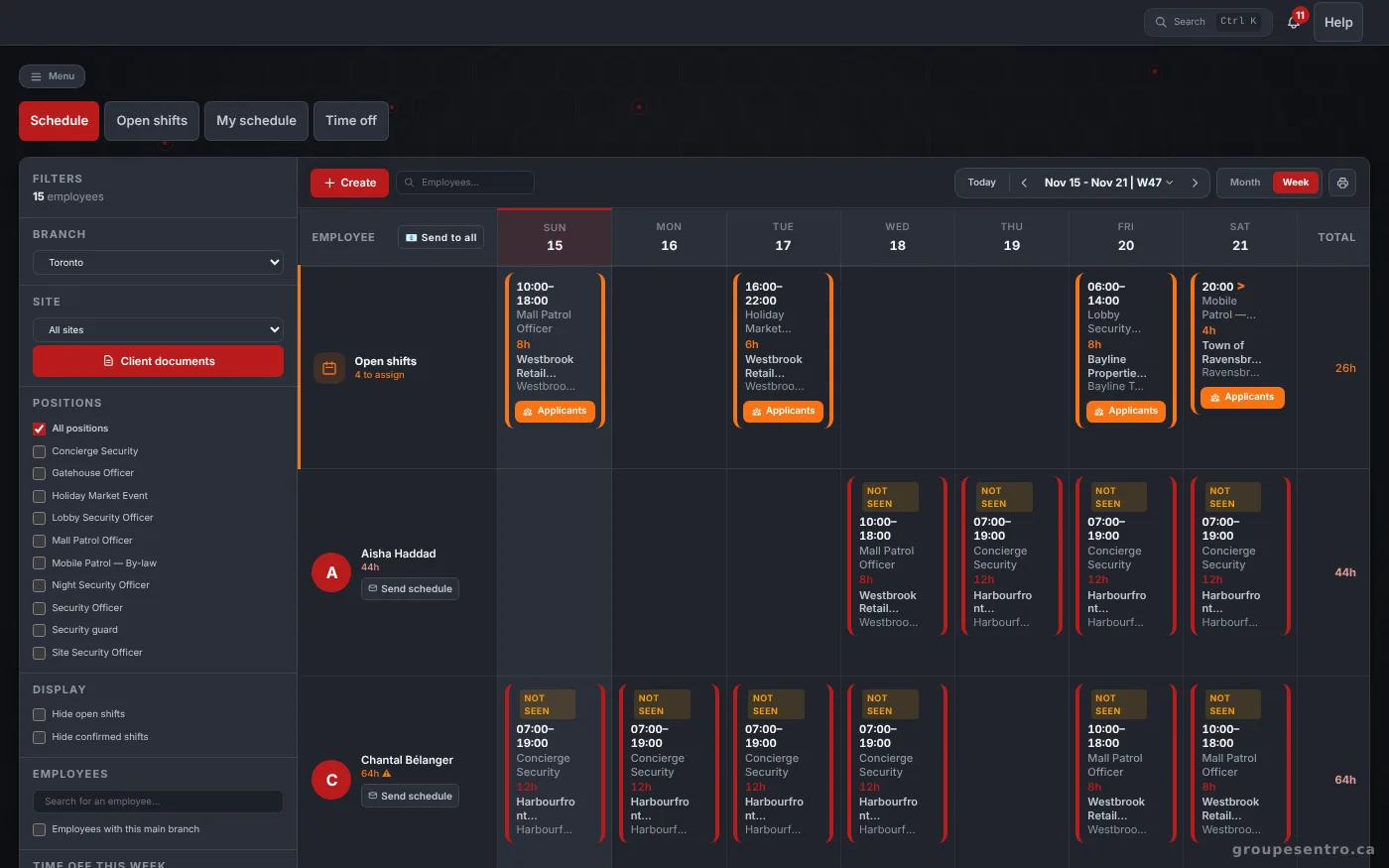
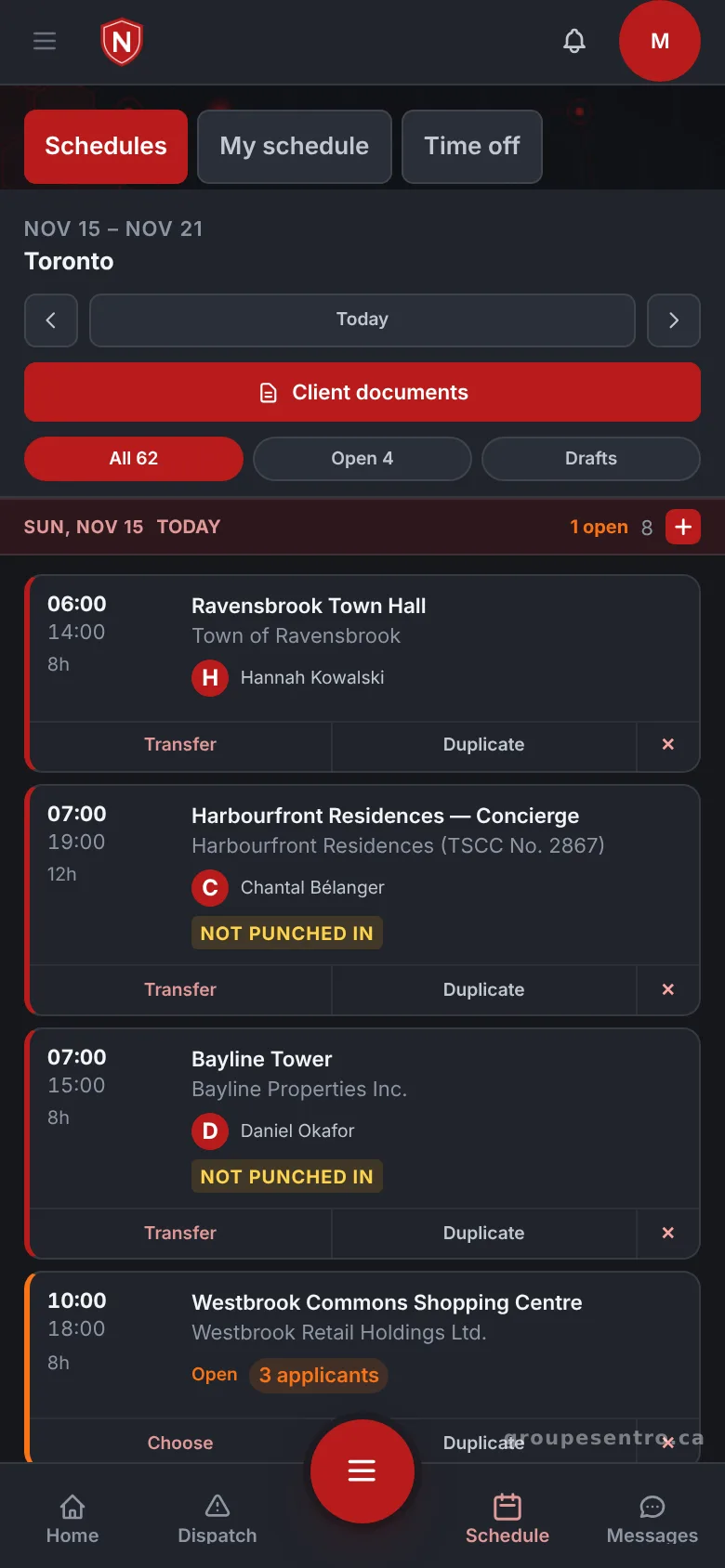
The week’s schedule, with open shifts and time off.
The branch schedule on the supervisor’s phone.
Offer an open shift to the team
An open shift goes out to the team, and you choose among the volunteers, ranked by seniority and distance from the site.
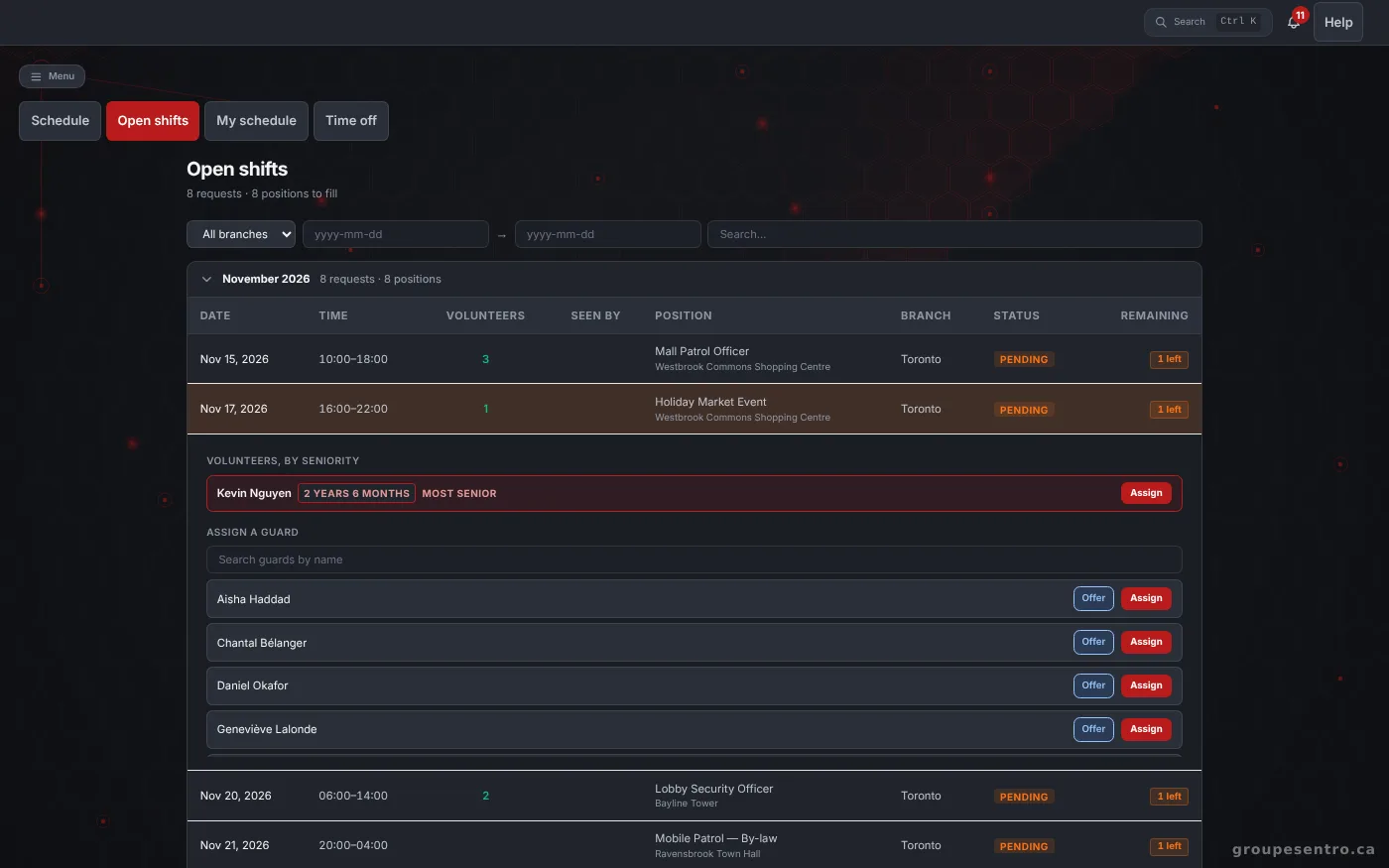
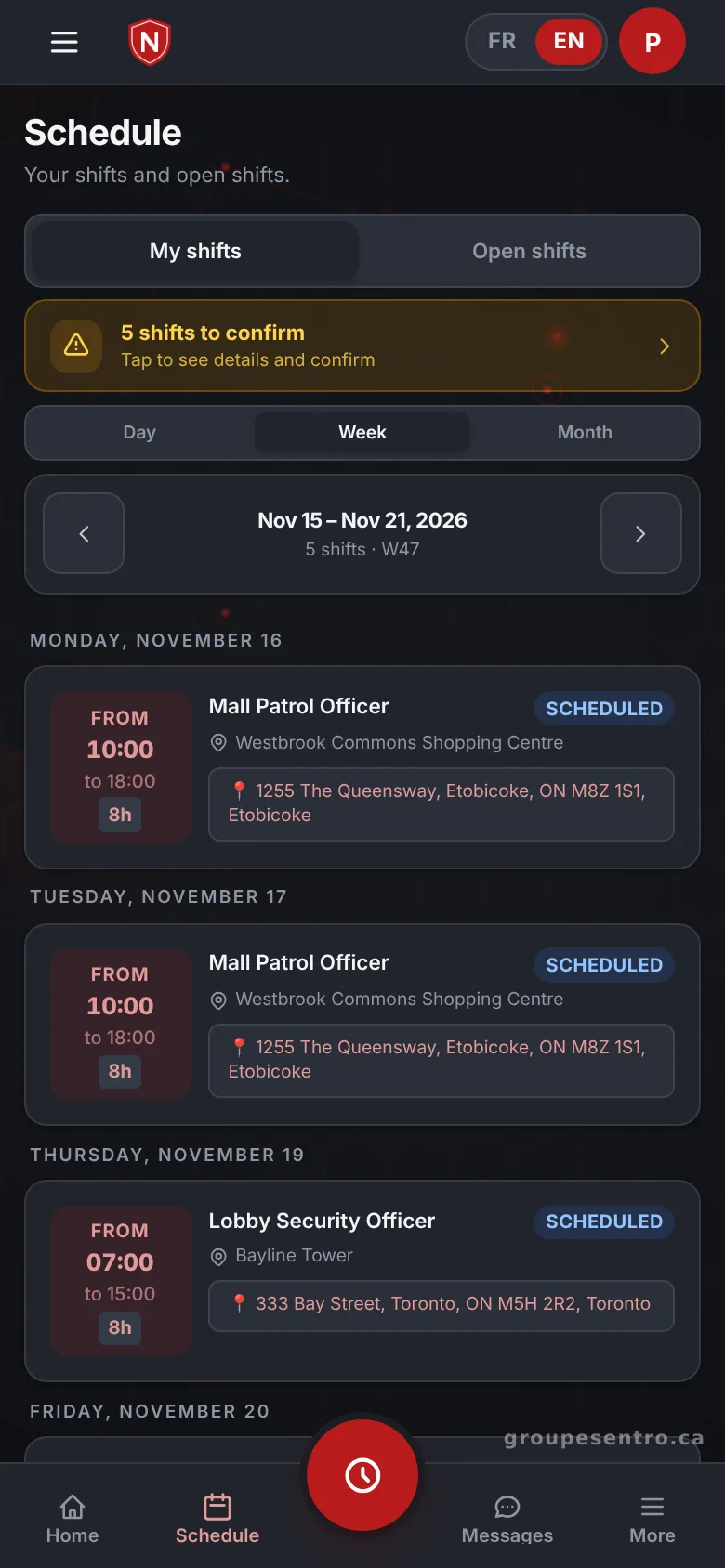
Open shifts and the guards who volunteered.
The week’s shifts on the guard’s phone.
A guard time clock with GPS punch
The guard punches in from their phone, and the GPS punch confirms they are on site.
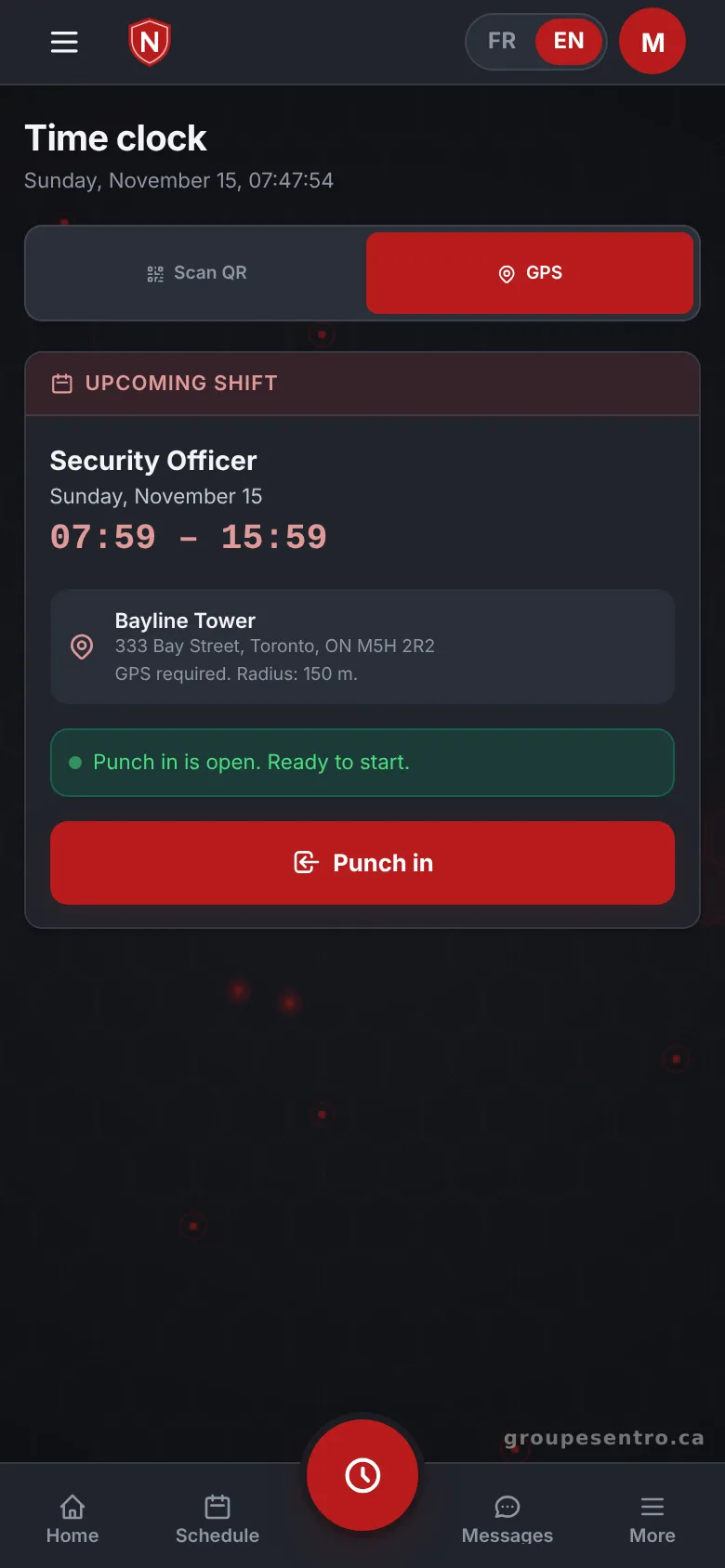
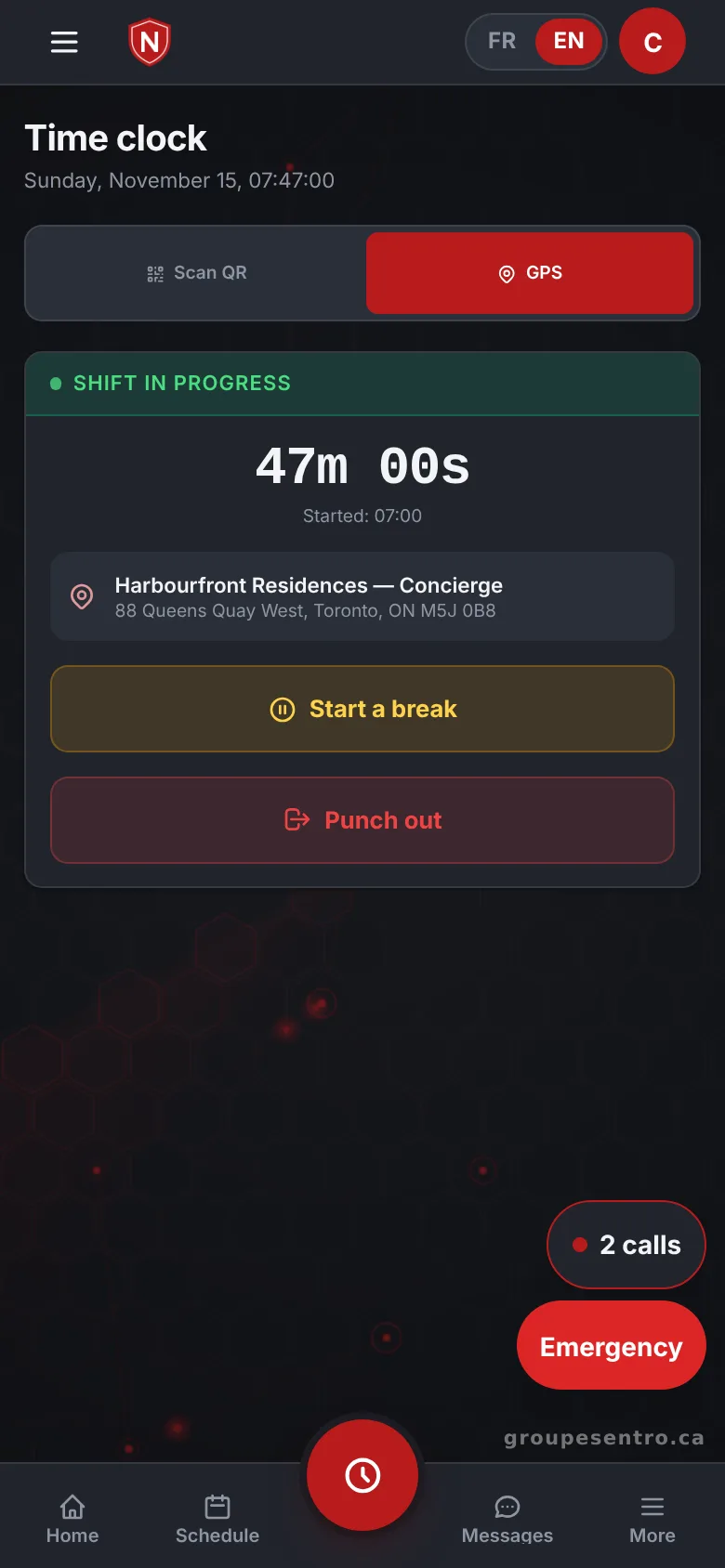
Punching in by GPS, within the site radius.
A shift in progress, with the time elapsed and the break button.
Patrols and their checkpoints
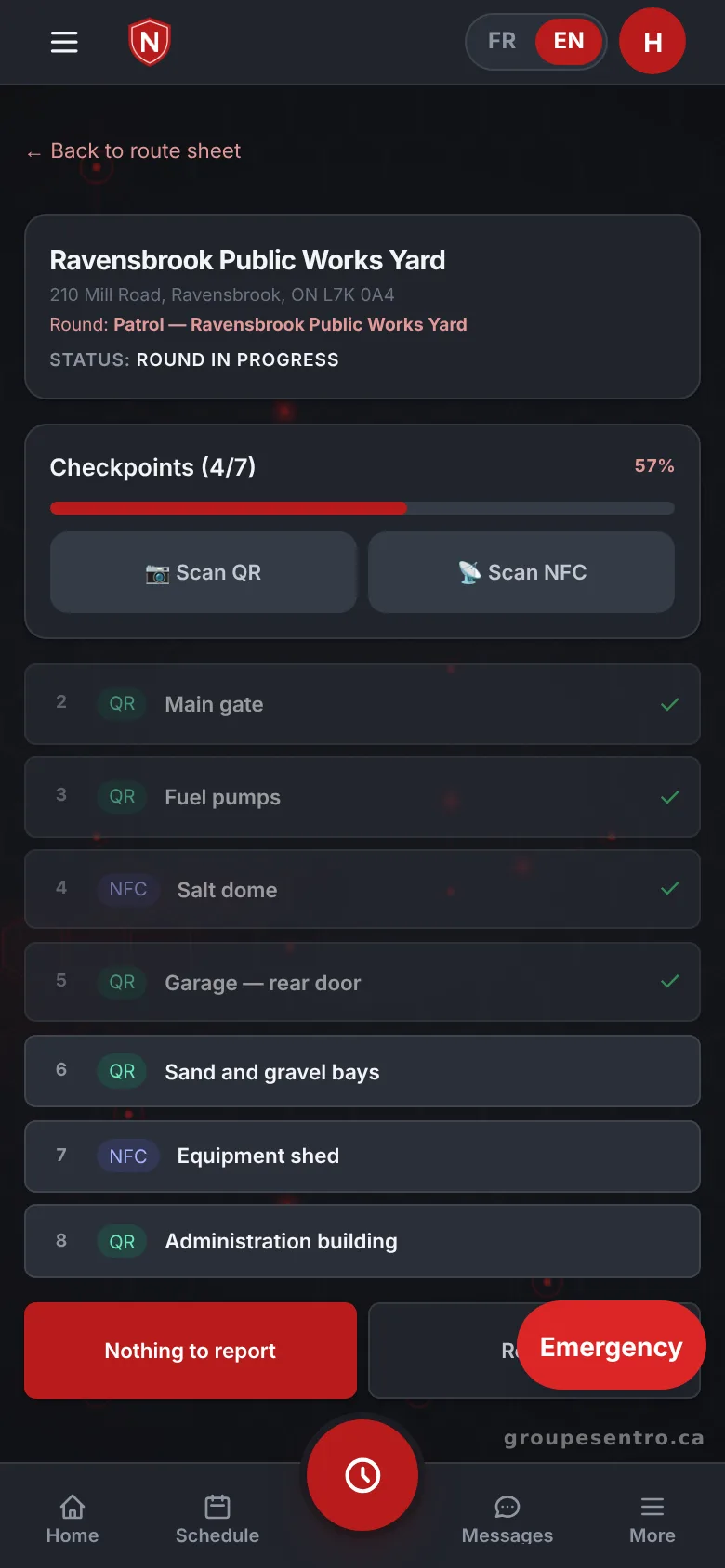
The guard scans each QR or NFC checkpoint, and the office follows the guard tour without having to call.
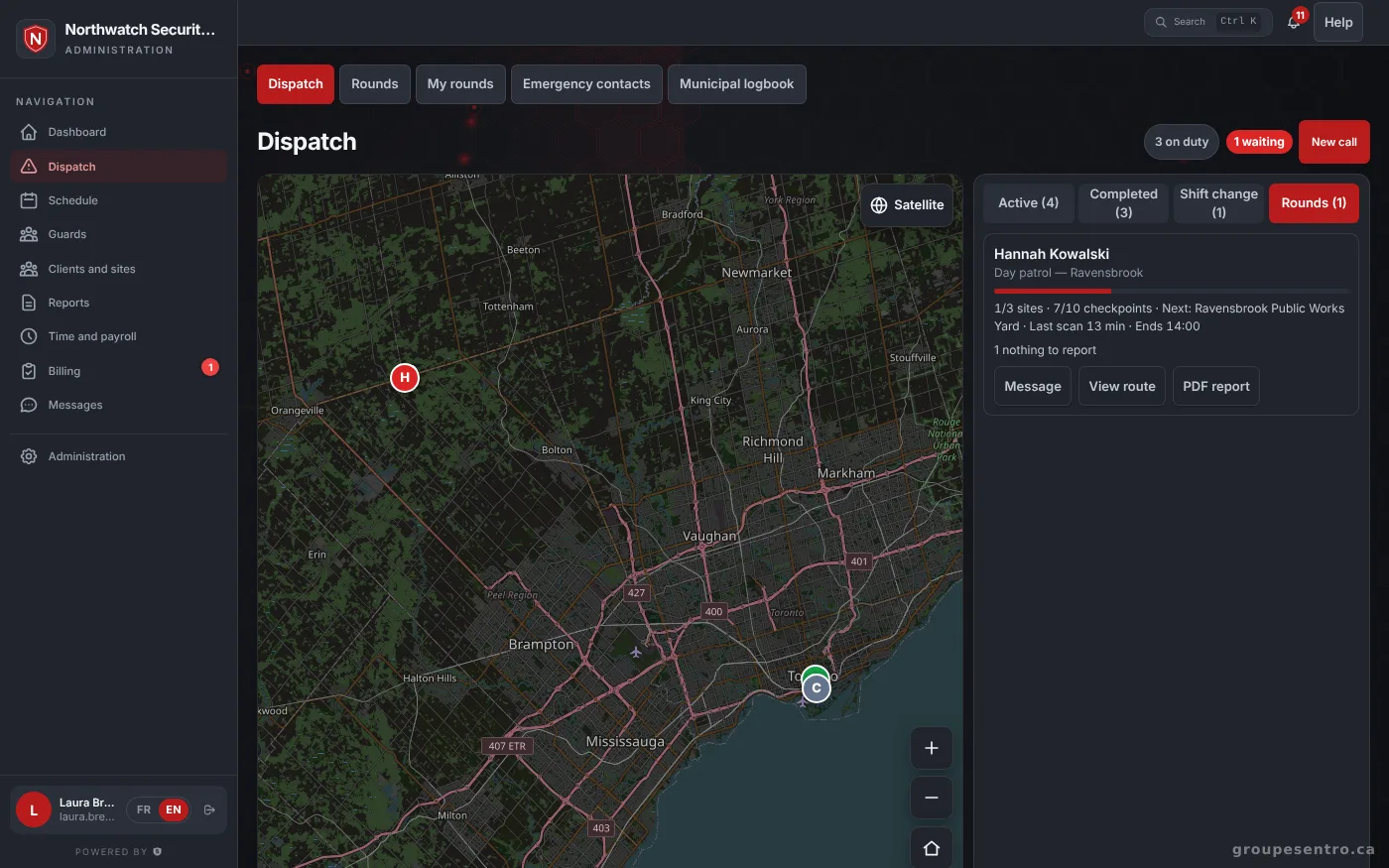
Patrols in progress and the latest scans.
A patrol on the guard’s phone, checkpoint by checkpoint.
Incident reporting from the field
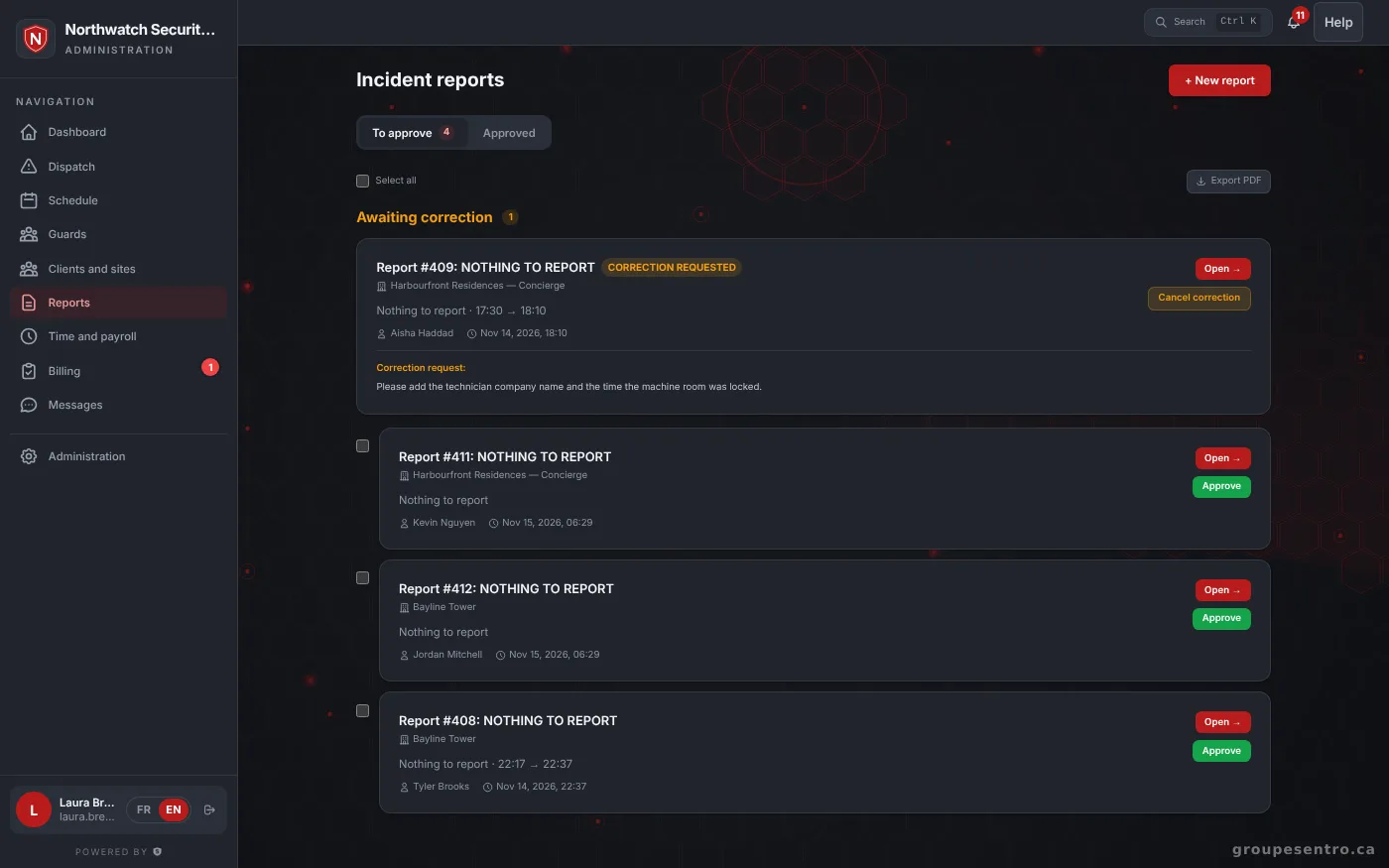
The guard fills in your template with photos and a signature, and the supervisor approves it before the client sees it.
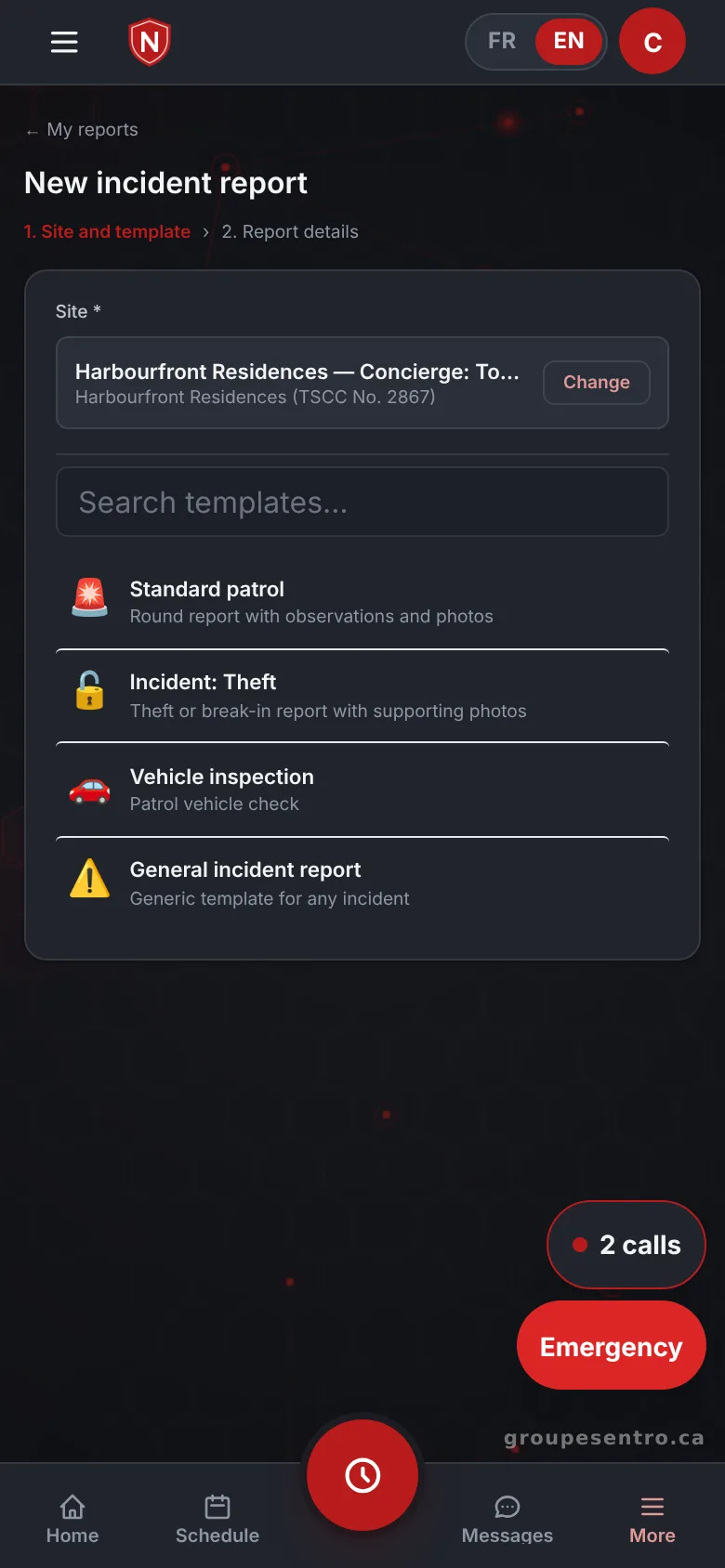
A report filled in on site.
Reports to approve, including one sent back for correction.
Write to the team and share an instruction
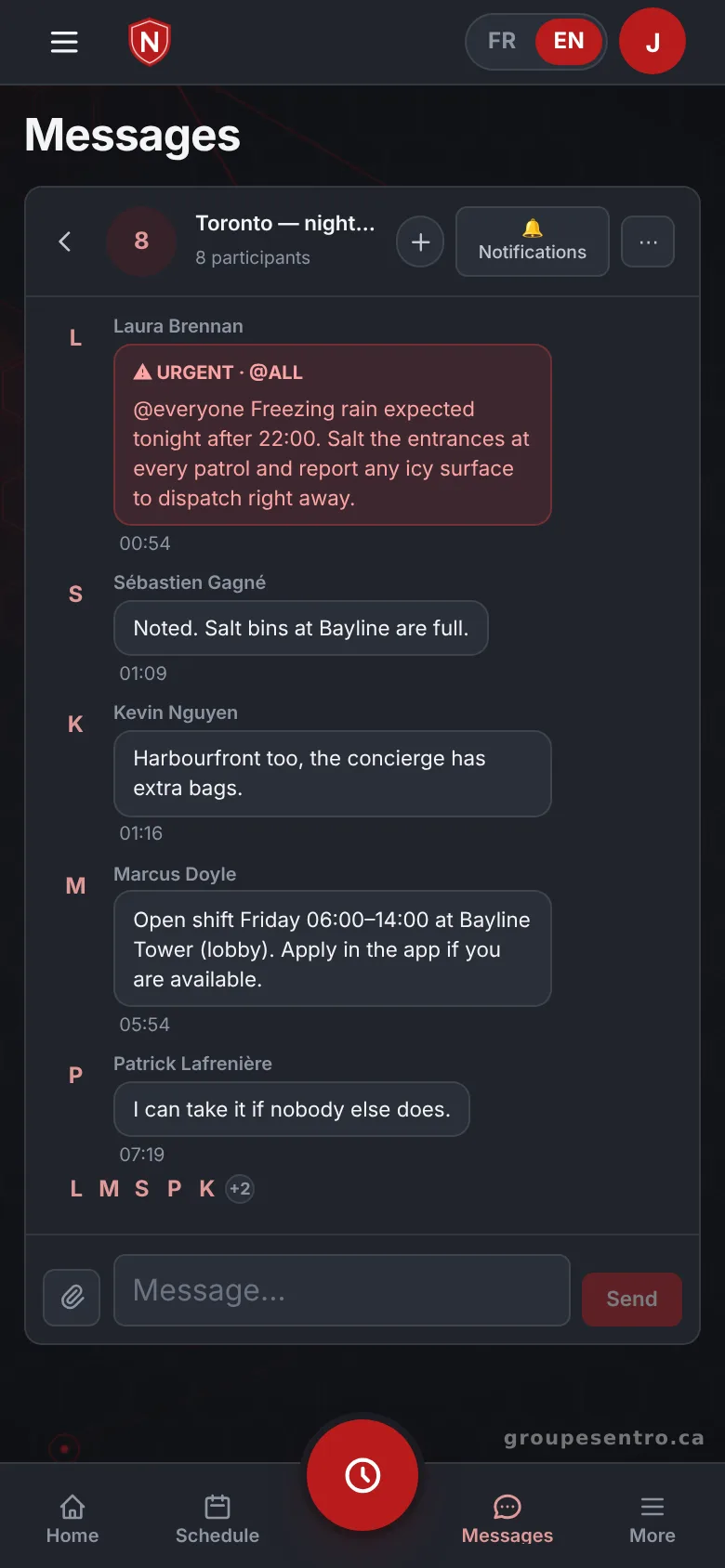
Write to one guard or to a group, or publish a news post and see who read it.
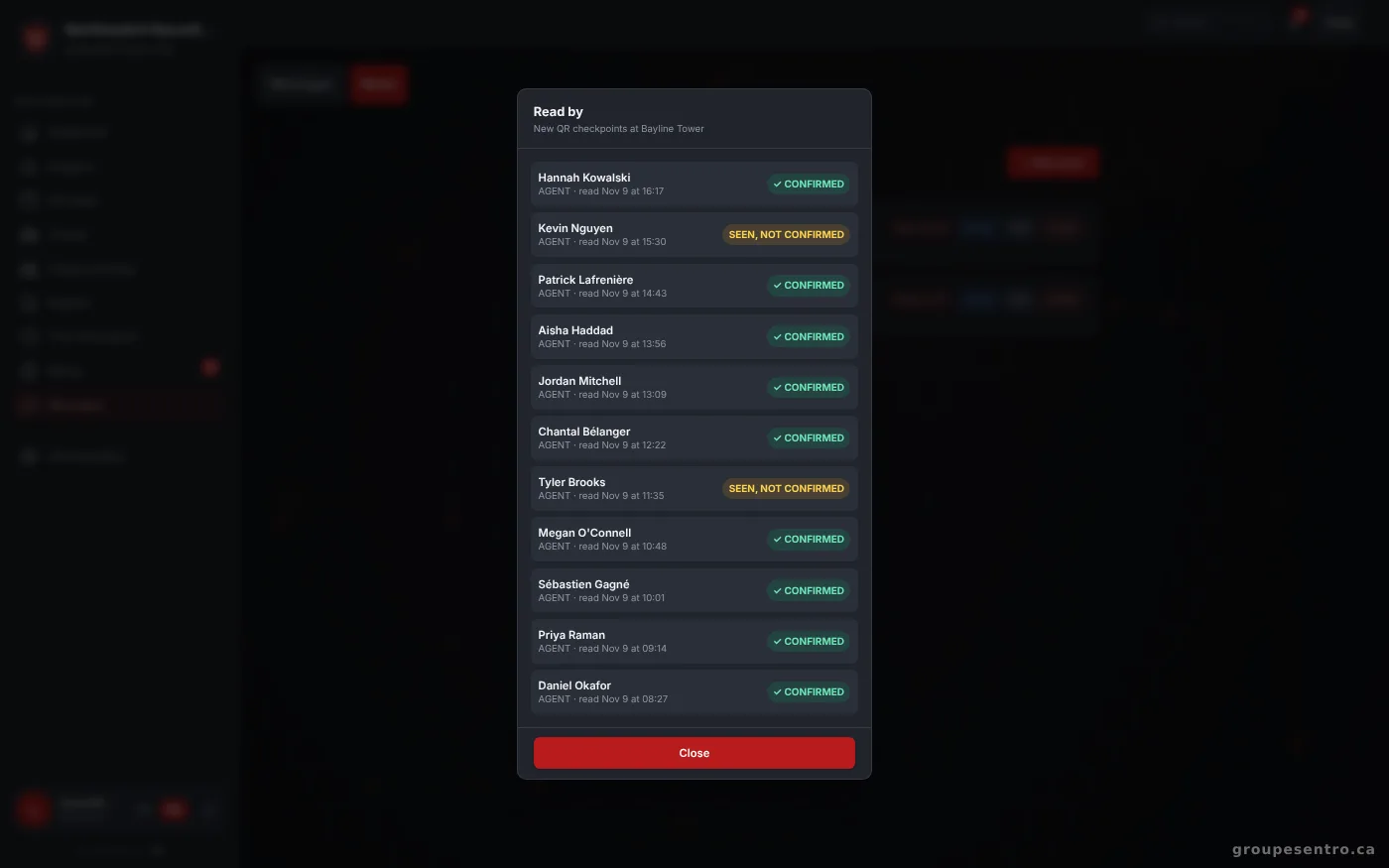
A news post and the list of employees who read it.
An urgent message and a shift offer in the team group.
Emergency contacts for each site
The people to call in an emergency on each site, in order, for the supervisors you choose.
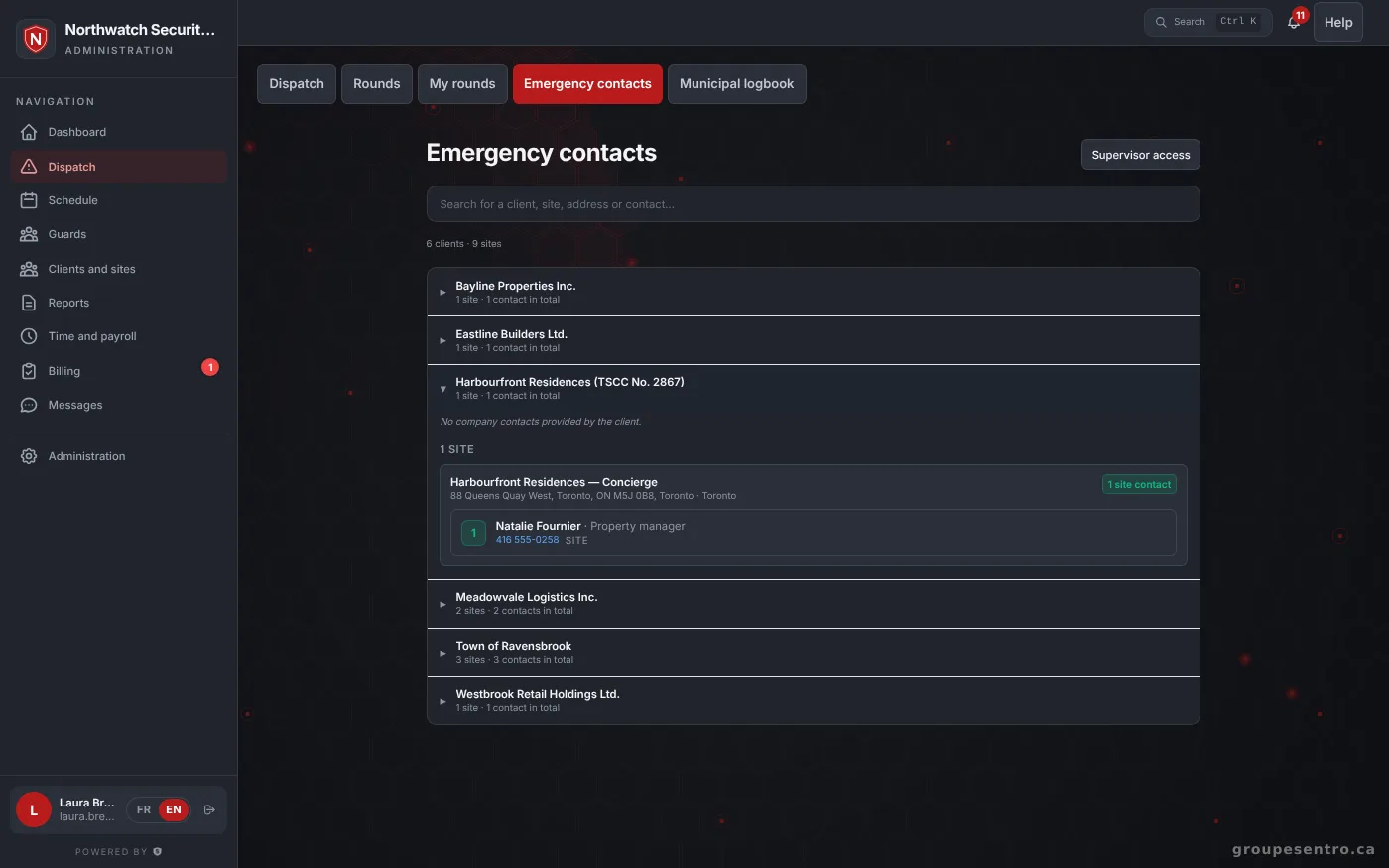
The emergency contact book, by client and by site.
Try Sentro with your team
20 days free, with 24/7 support during the trial. We reply within 24 hours.